
Step 01
Start with Smart Meal Planning
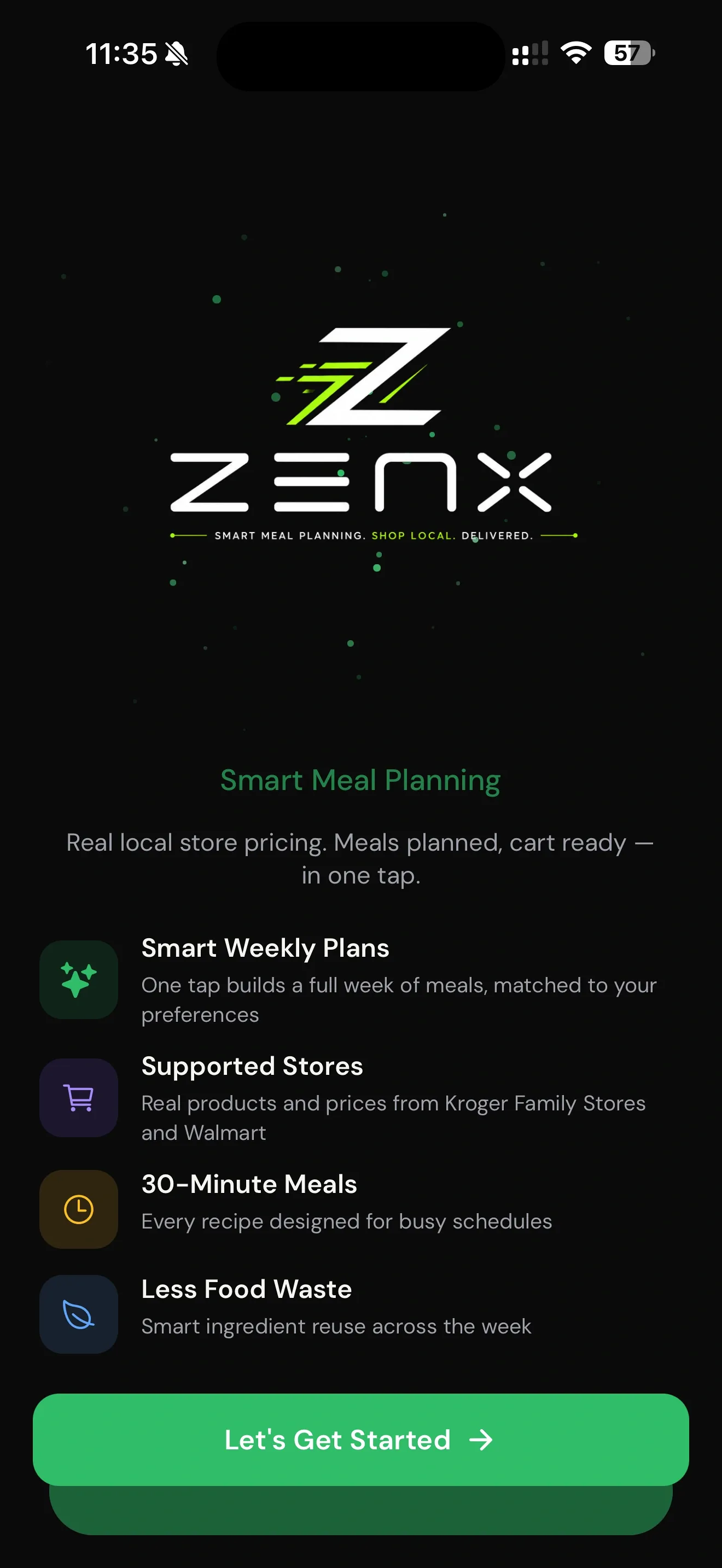
Zenx opens with the current branded welcome screen and the promise: real local store pricing, meals planned, and reviewable grocery shopping in one tap.

Jump to a step
Zenx opens with the current branded welcome screen and the promise: real local store pricing, meals planned, and reviewable grocery shopping in one tap.
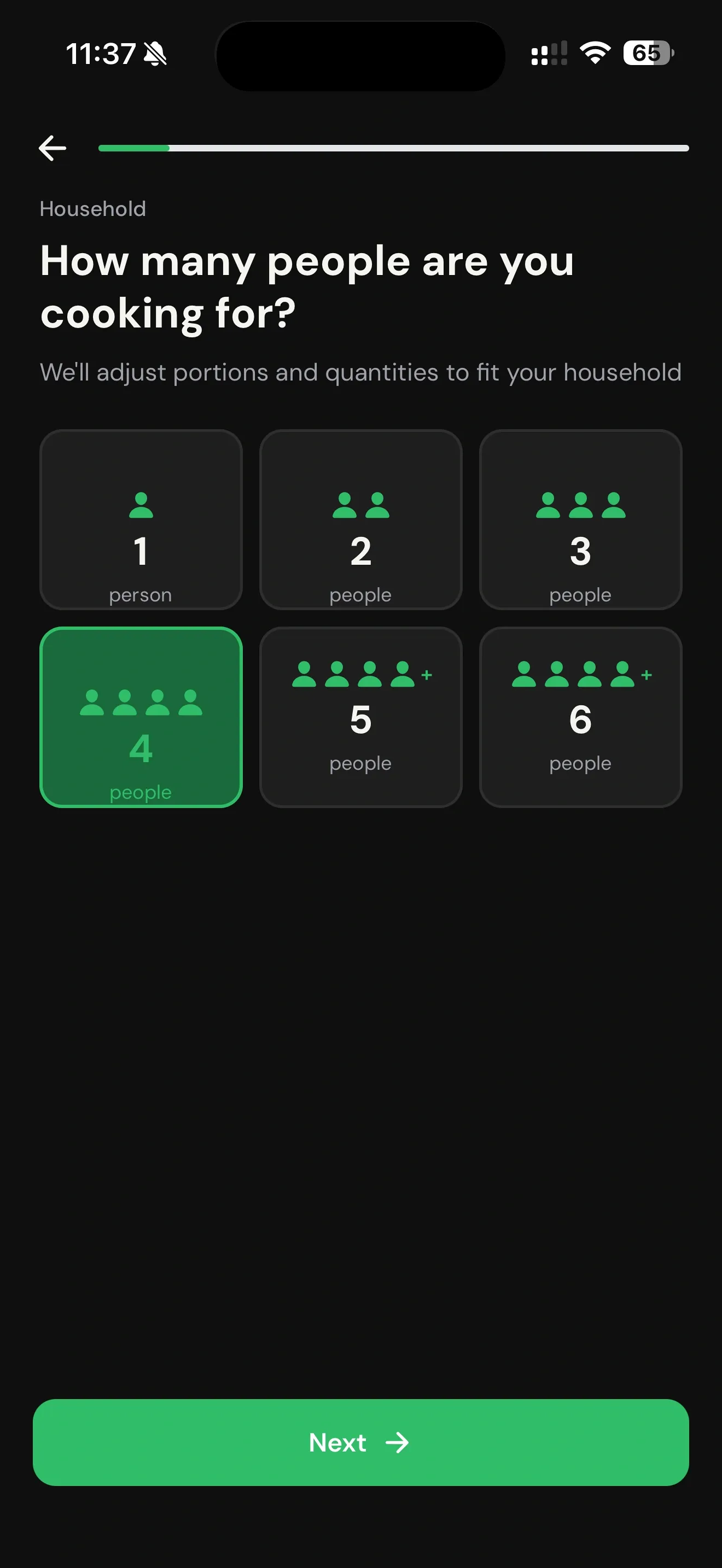
Zenx learns how many people you are cooking for so portions and quantities can fit the household.
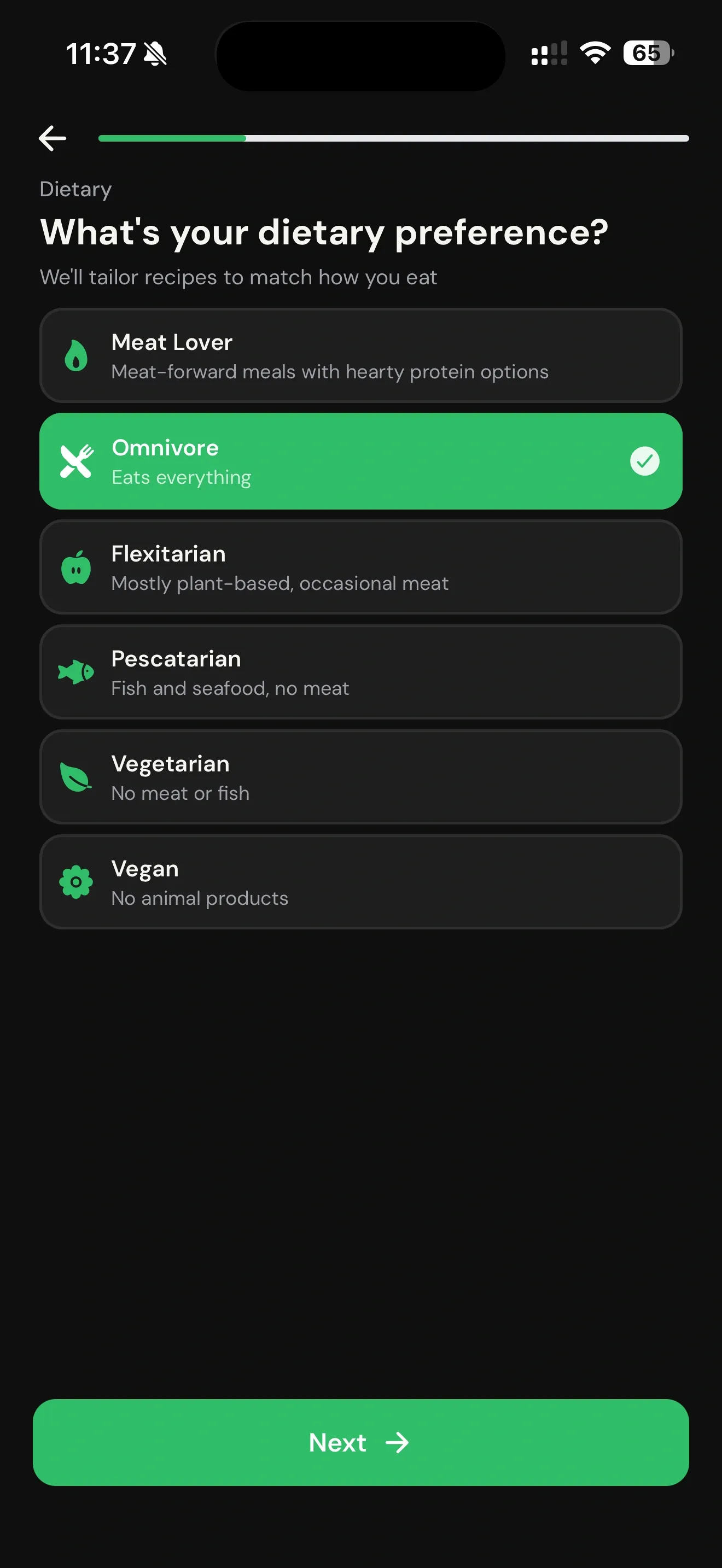
Diet preference shapes the recipe pool before the plan is built.
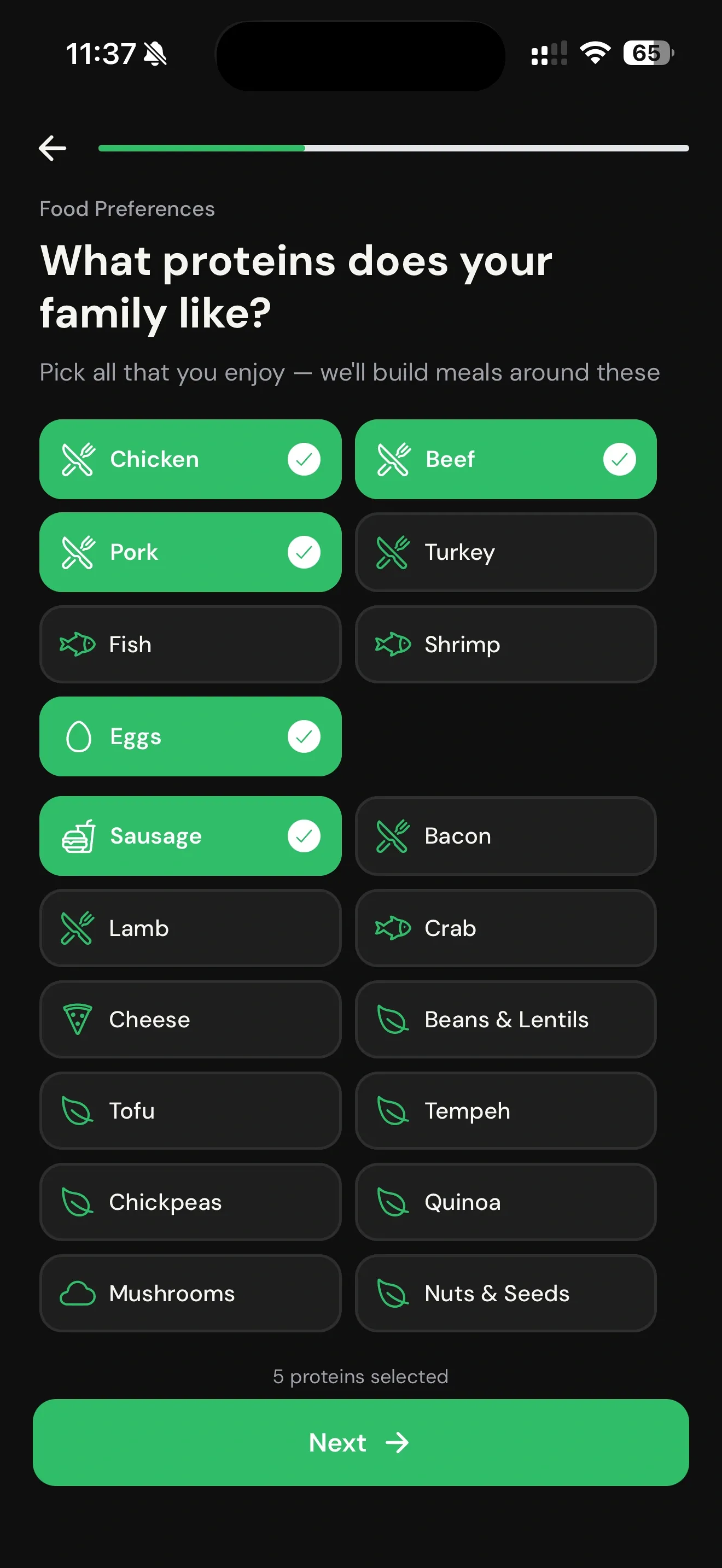
Zenx uses protein preferences to build meals around what the household actually enjoys.
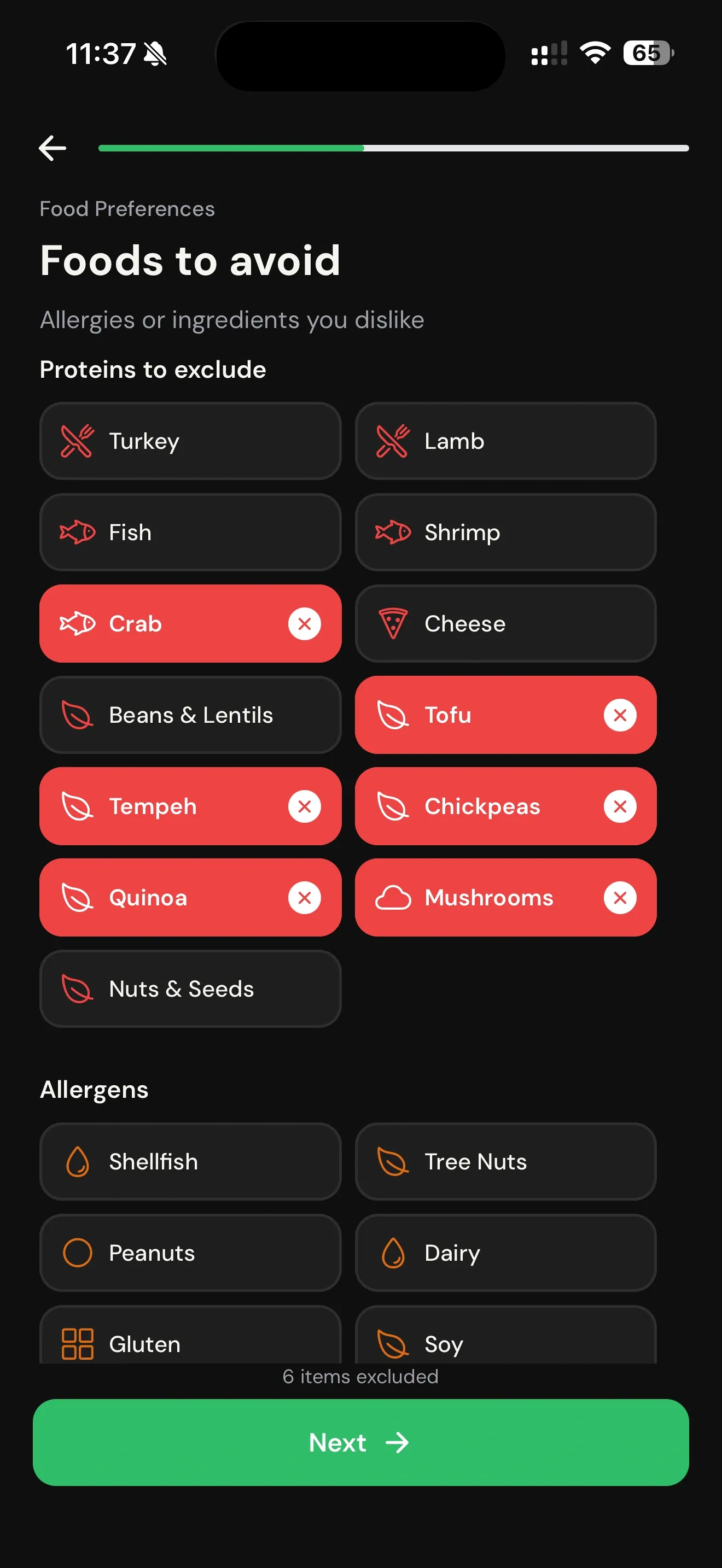
Users can remove disliked ingredients, proteins, and allergens so the plan better fits the kitchen.
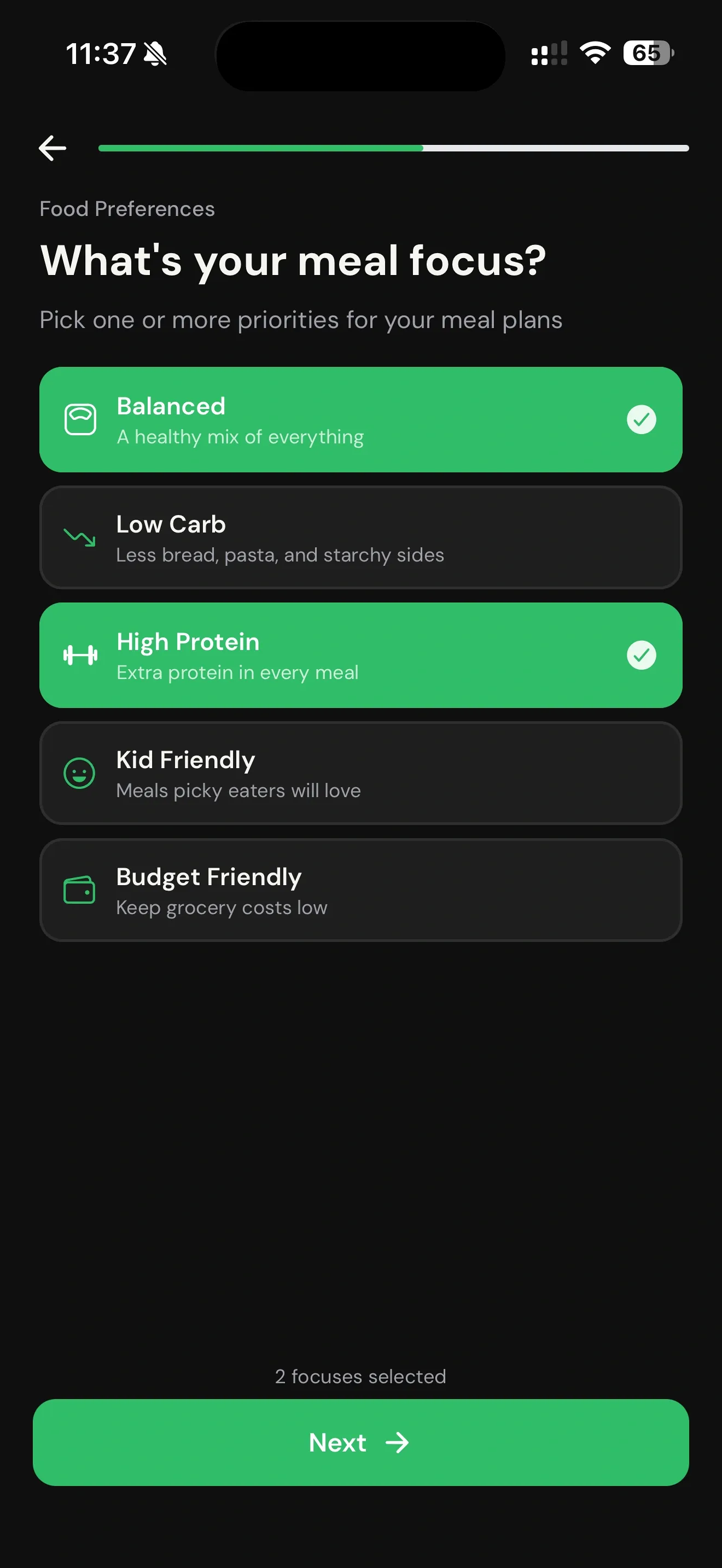
Zenx can prioritize goals like balanced meals, kid-friendly options, high protein, low carb, or budget-aware planning.
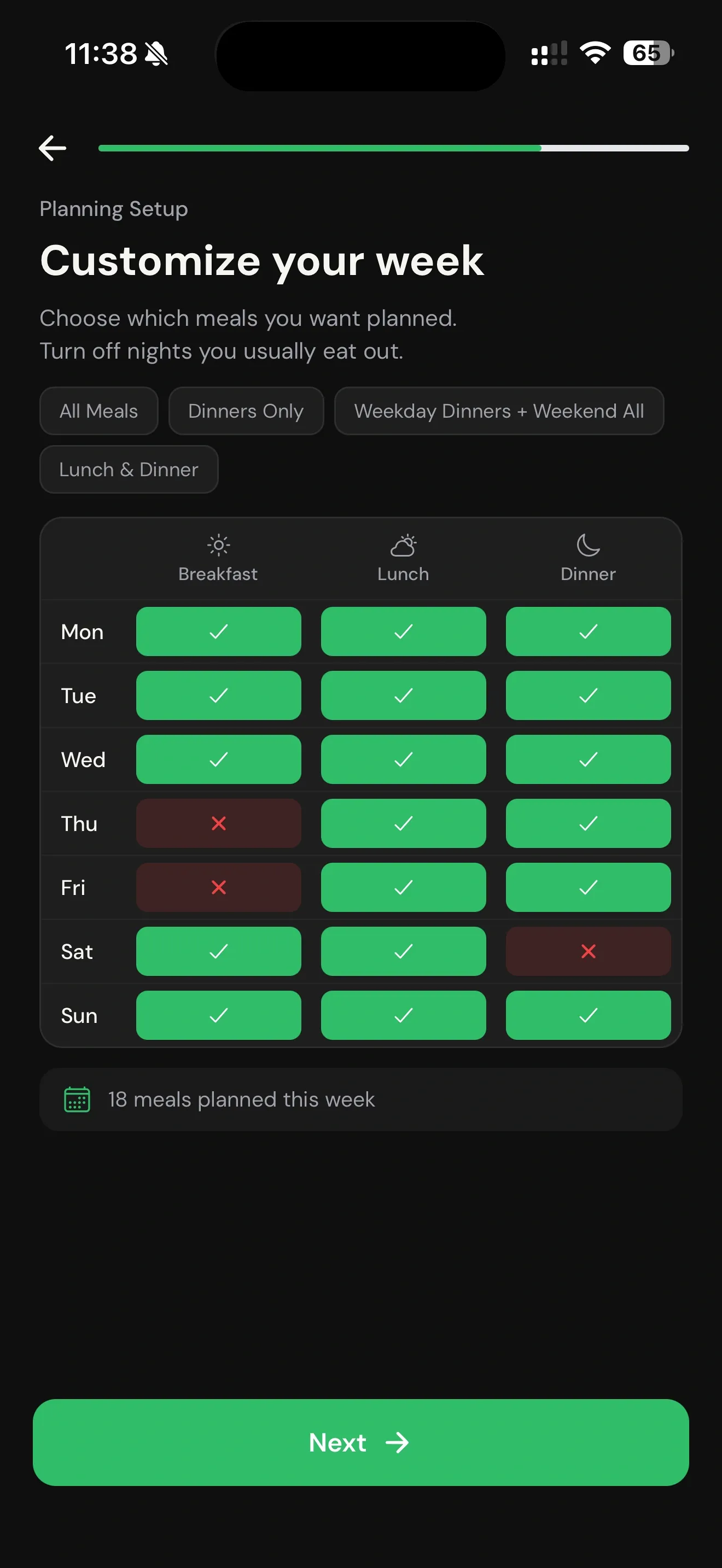
Users choose which meals should be planned and can turn off meals they usually skip or eat out.
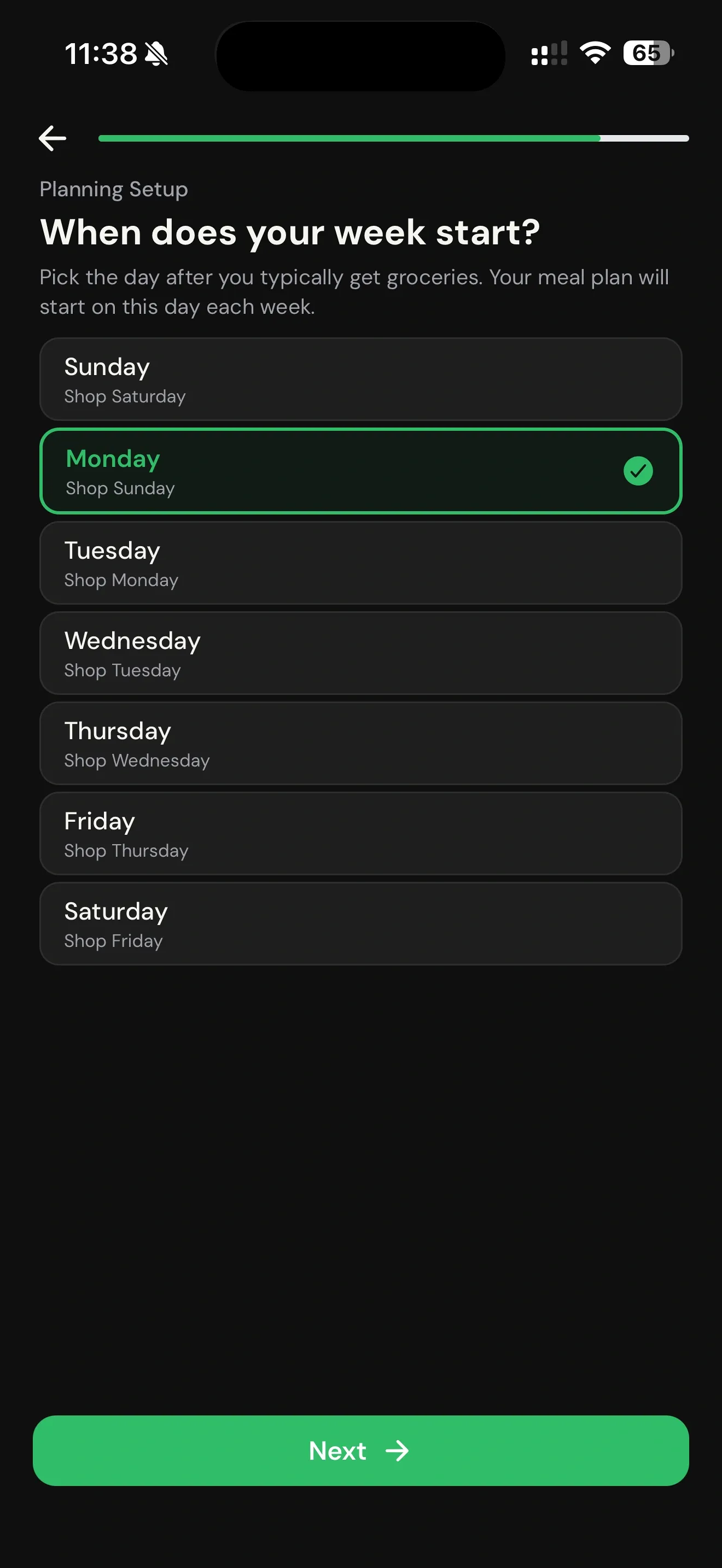
The plan can align with the day groceries are usually purchased so the week starts in the right rhythm.
Zenx connects planning to a supported retailer flow such as Walmart or Kroger-family stores where supported.
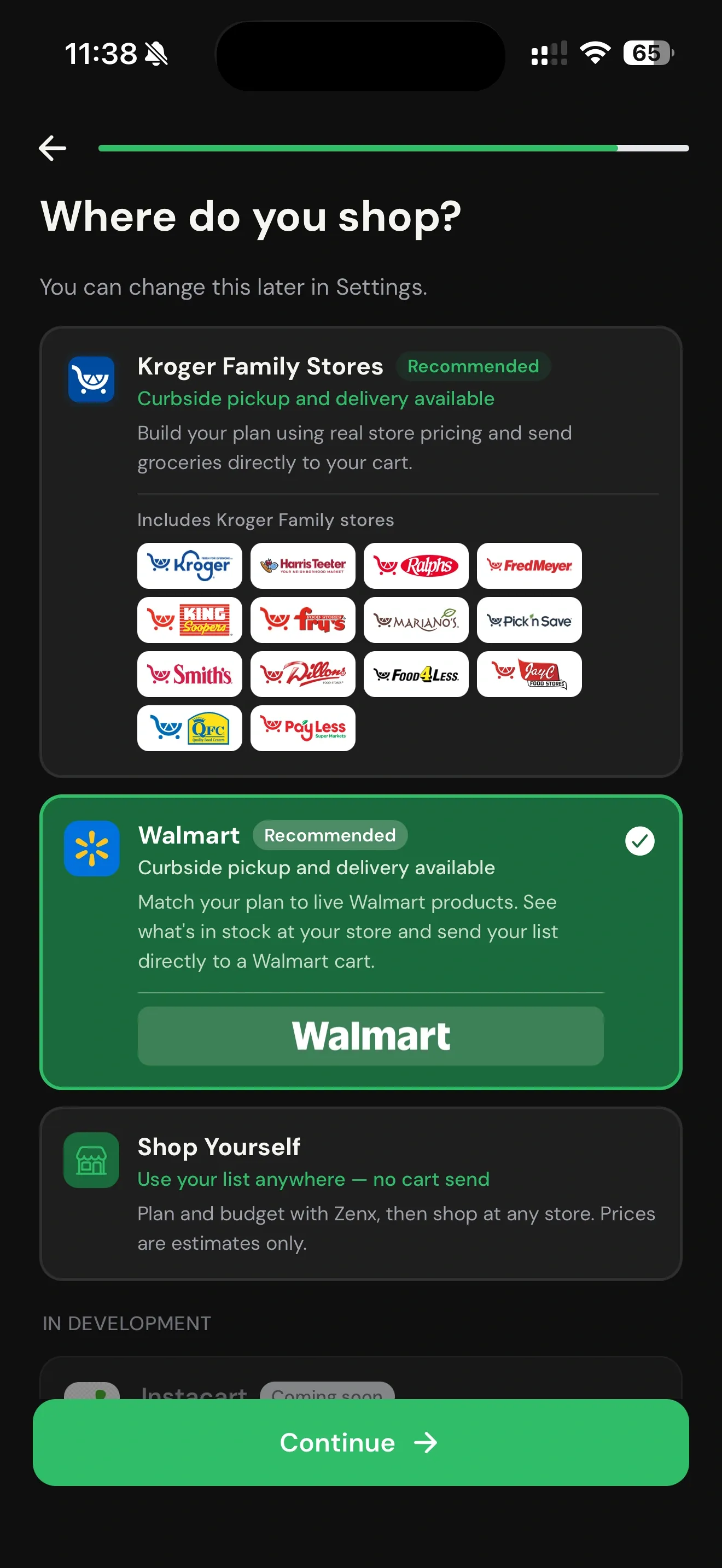
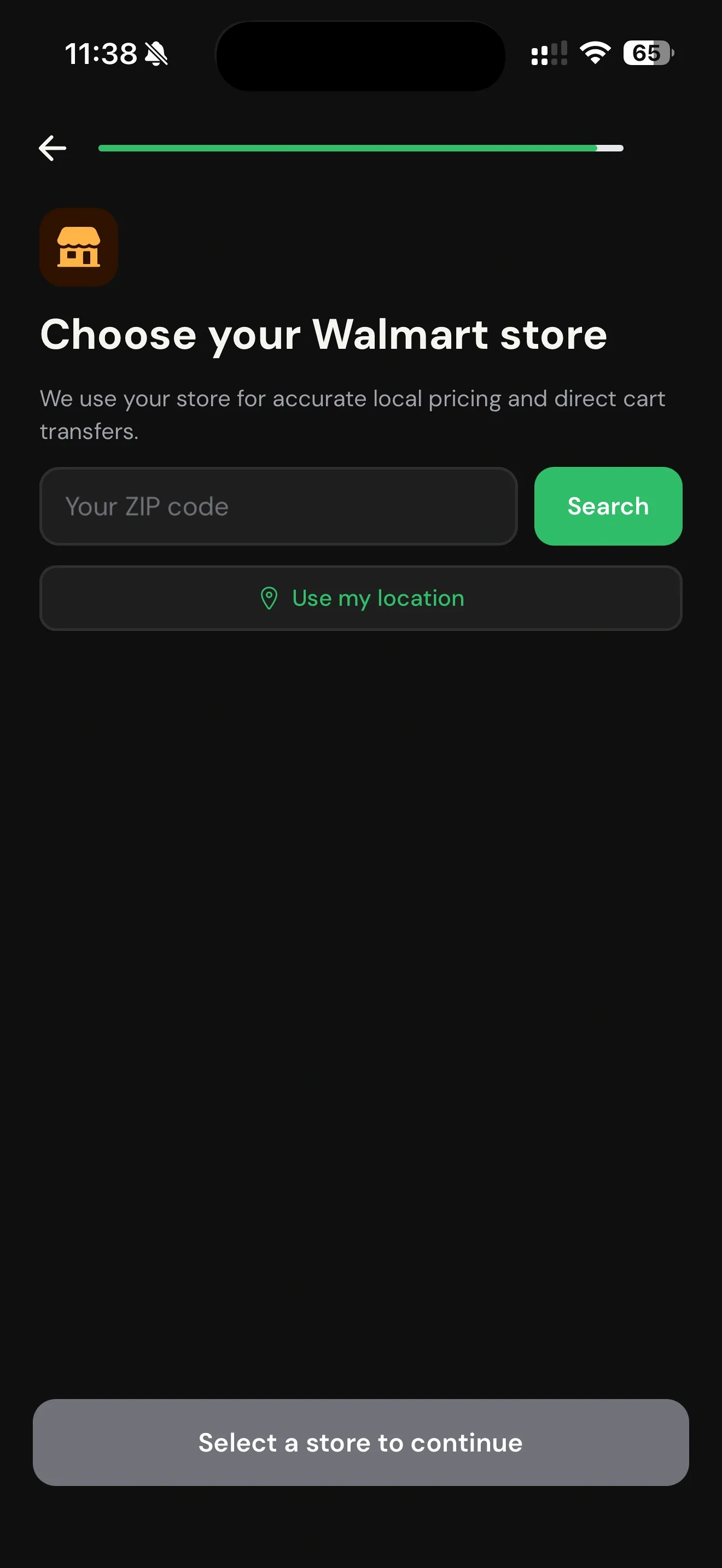
For Walmart mode, Zenx uses the selected local store for pricing guidance and cart-ready matching where supported.
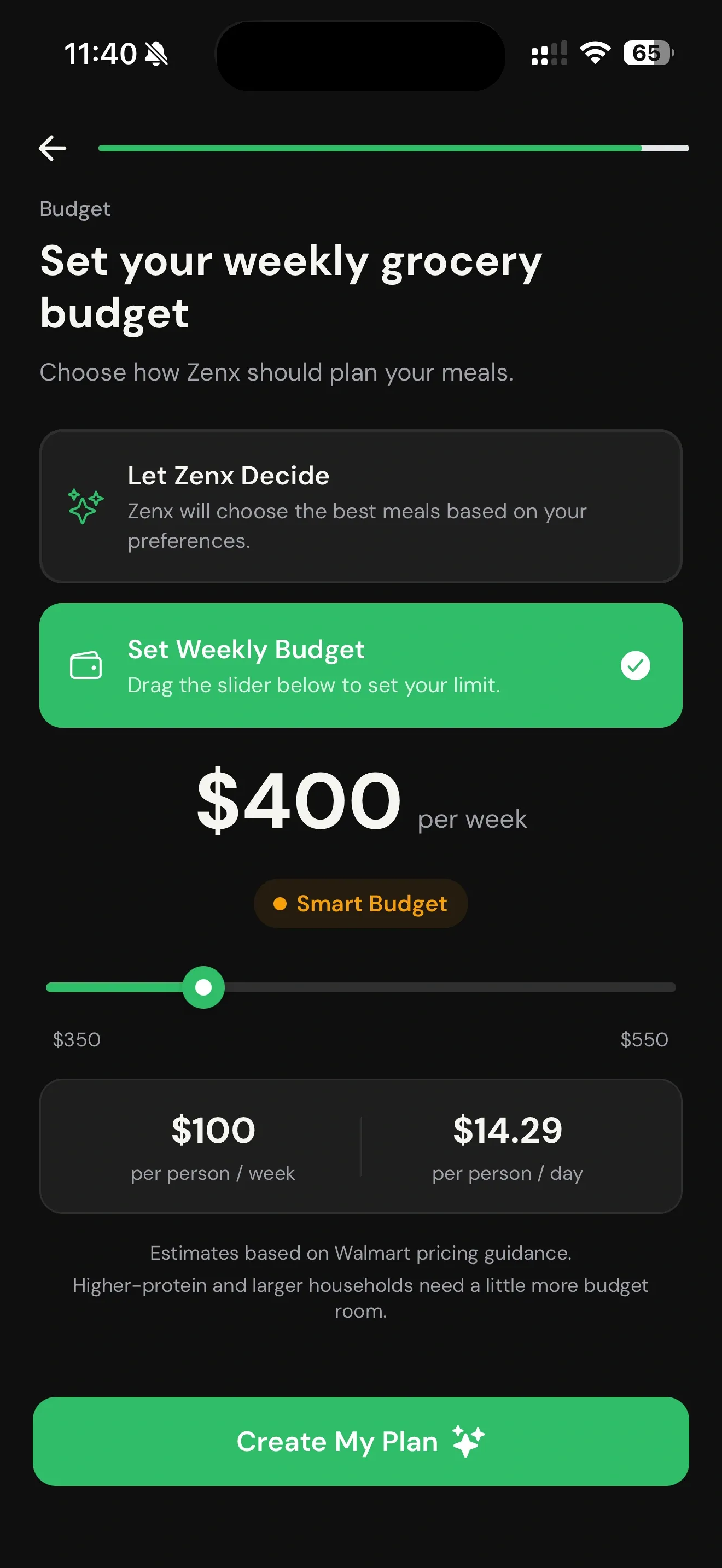
Budget context helps Zenx plan toward a realistic weekly grocery target without promising cheapest-product guarantees.
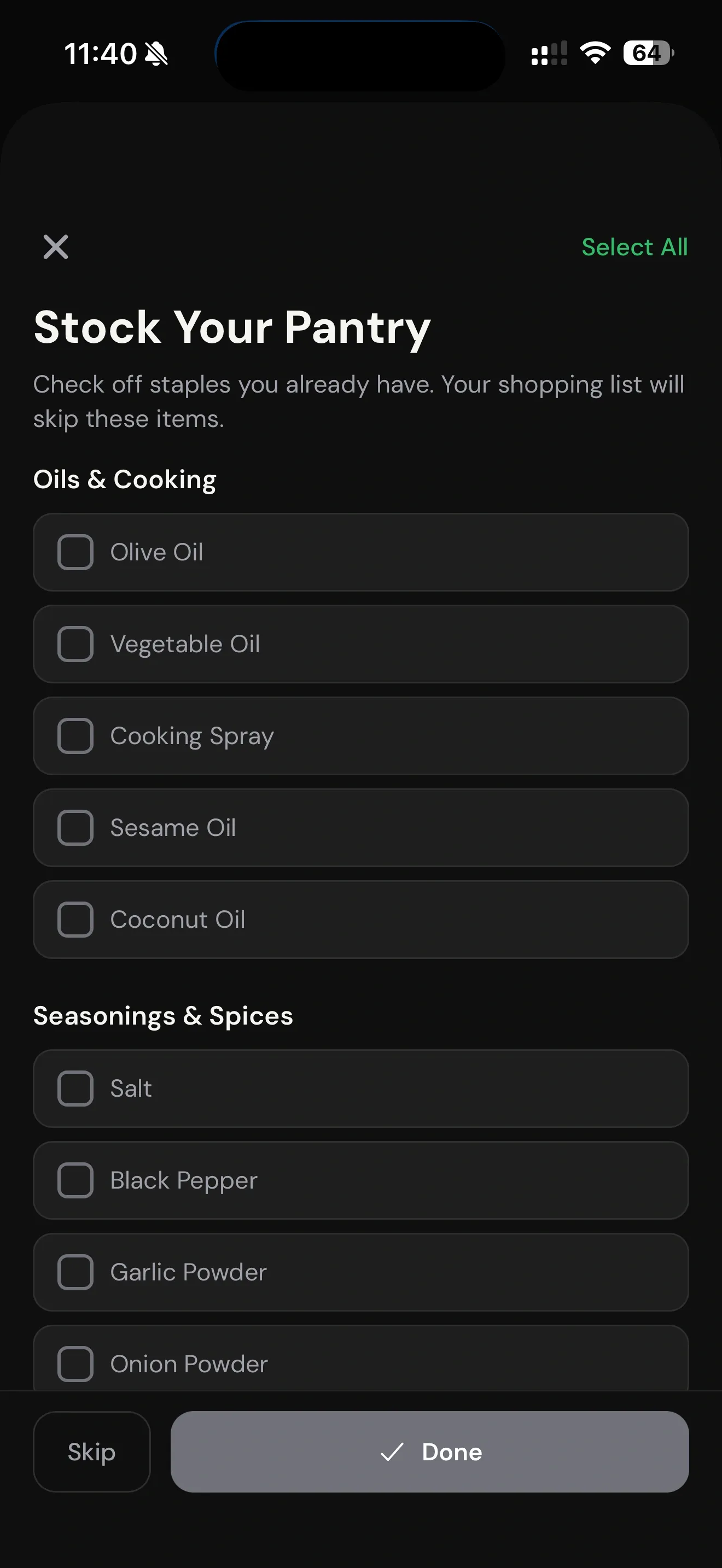
Smart Pantry helps Zenx account for staples and items already at home so the list does not start from an empty kitchen.
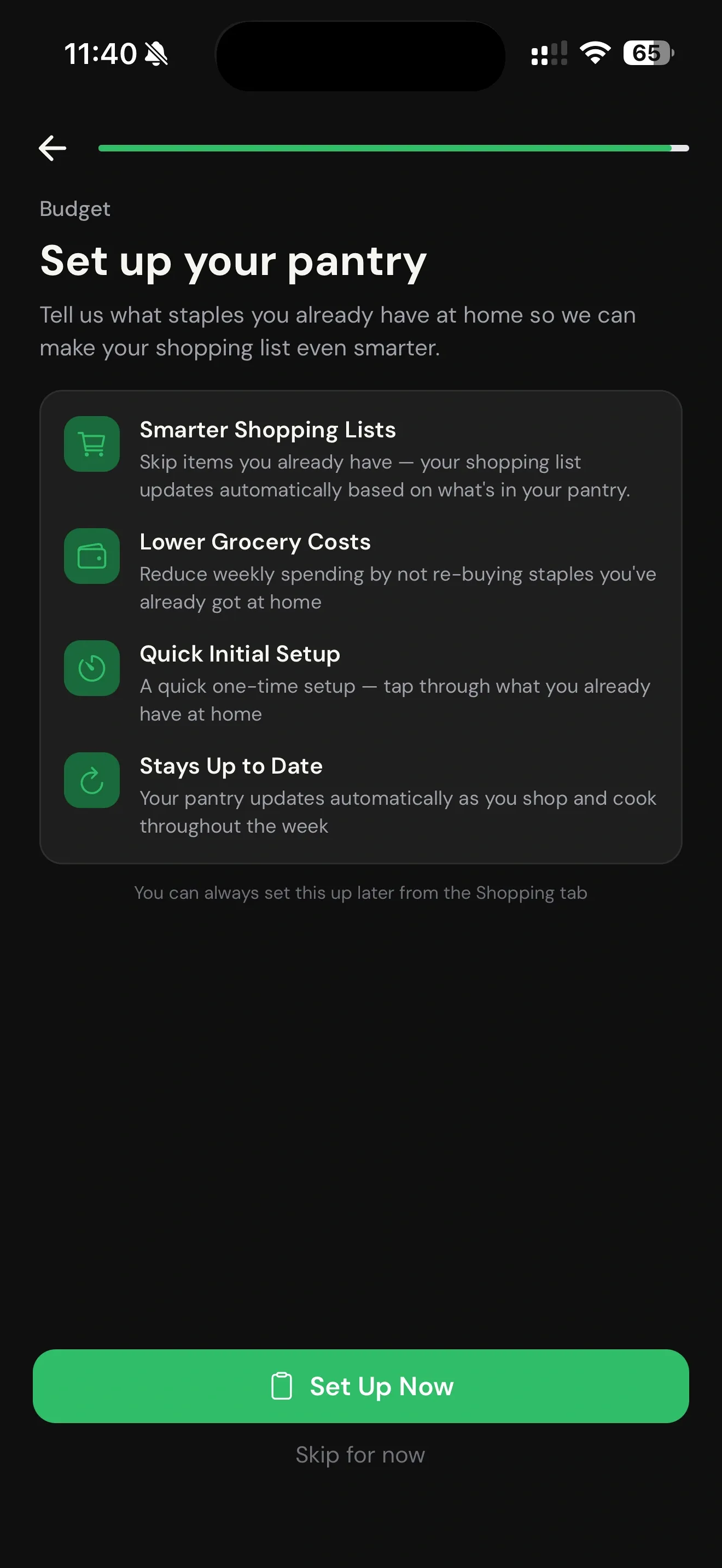
Users can tell Zenx which staples they already have so future shopping lists can be smarter and less repetitive.
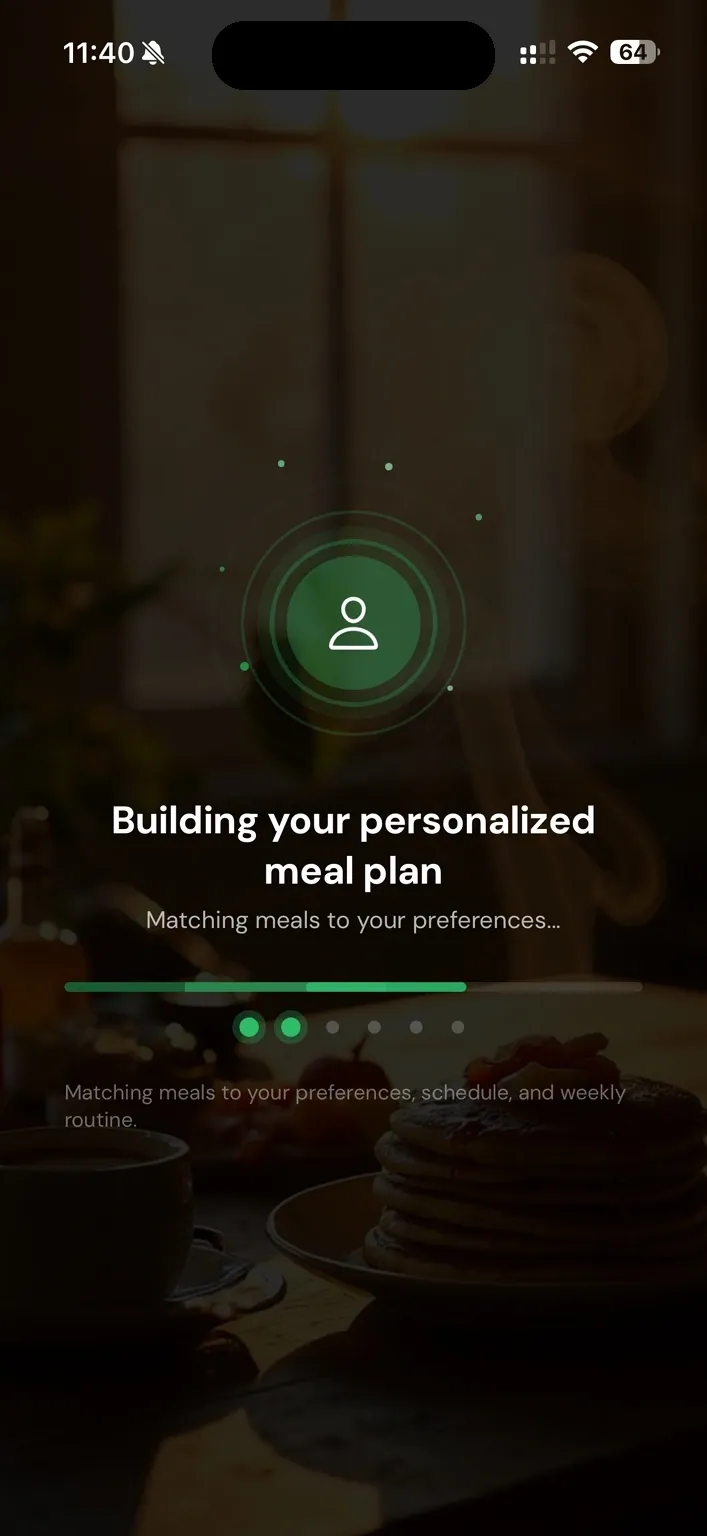
Zenx scans the recipe library and builds the week around preferences, schedule, pantry context, and store mode.
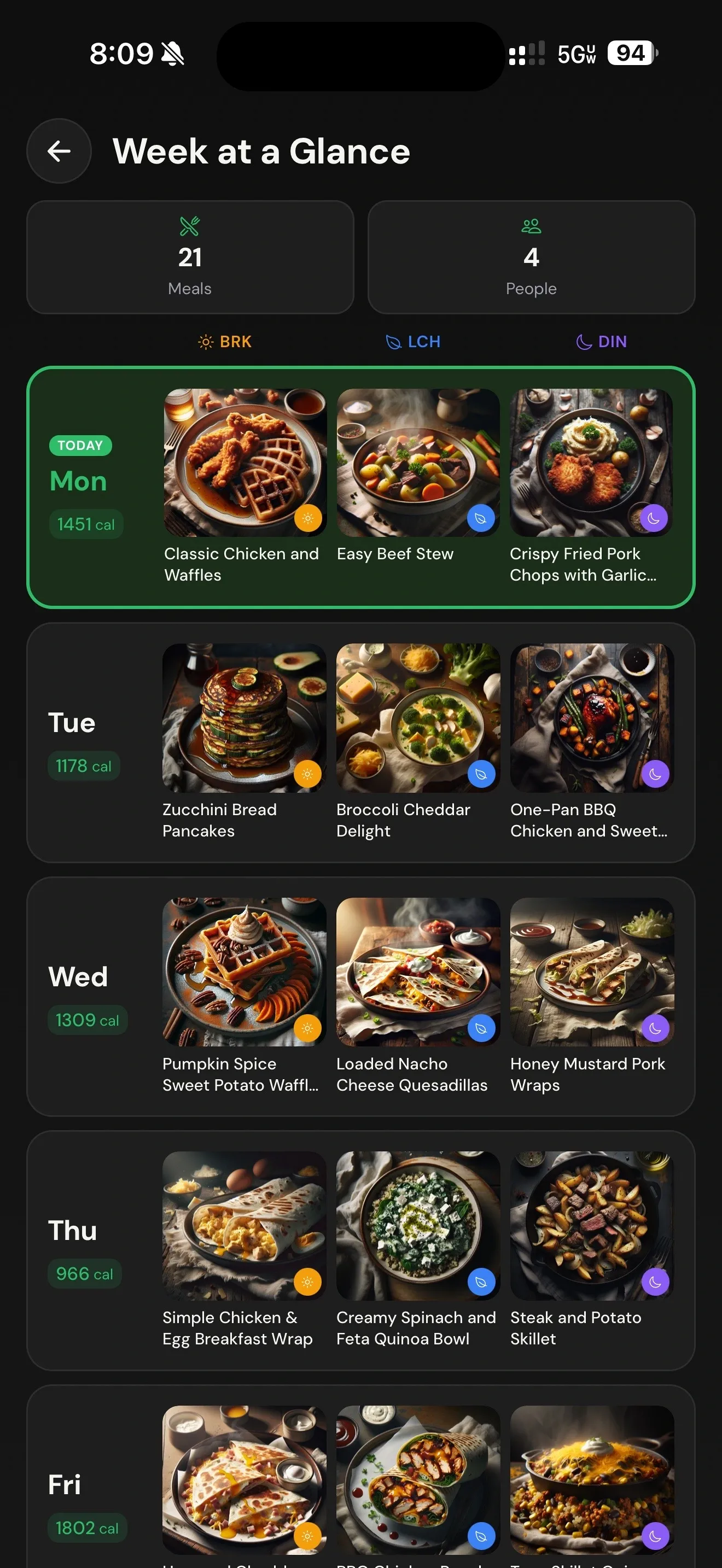
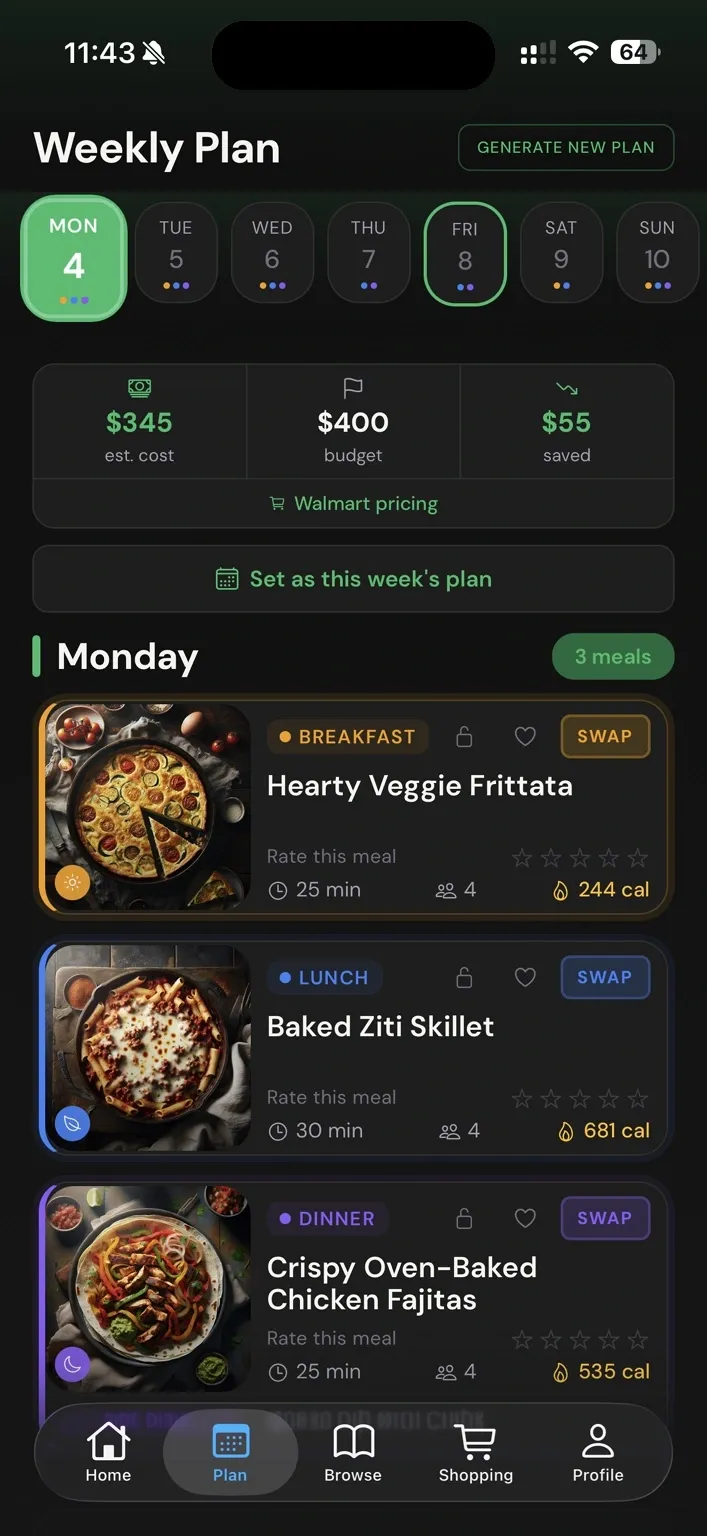
The week at a glance shows meals across the week with household size and daily structure.
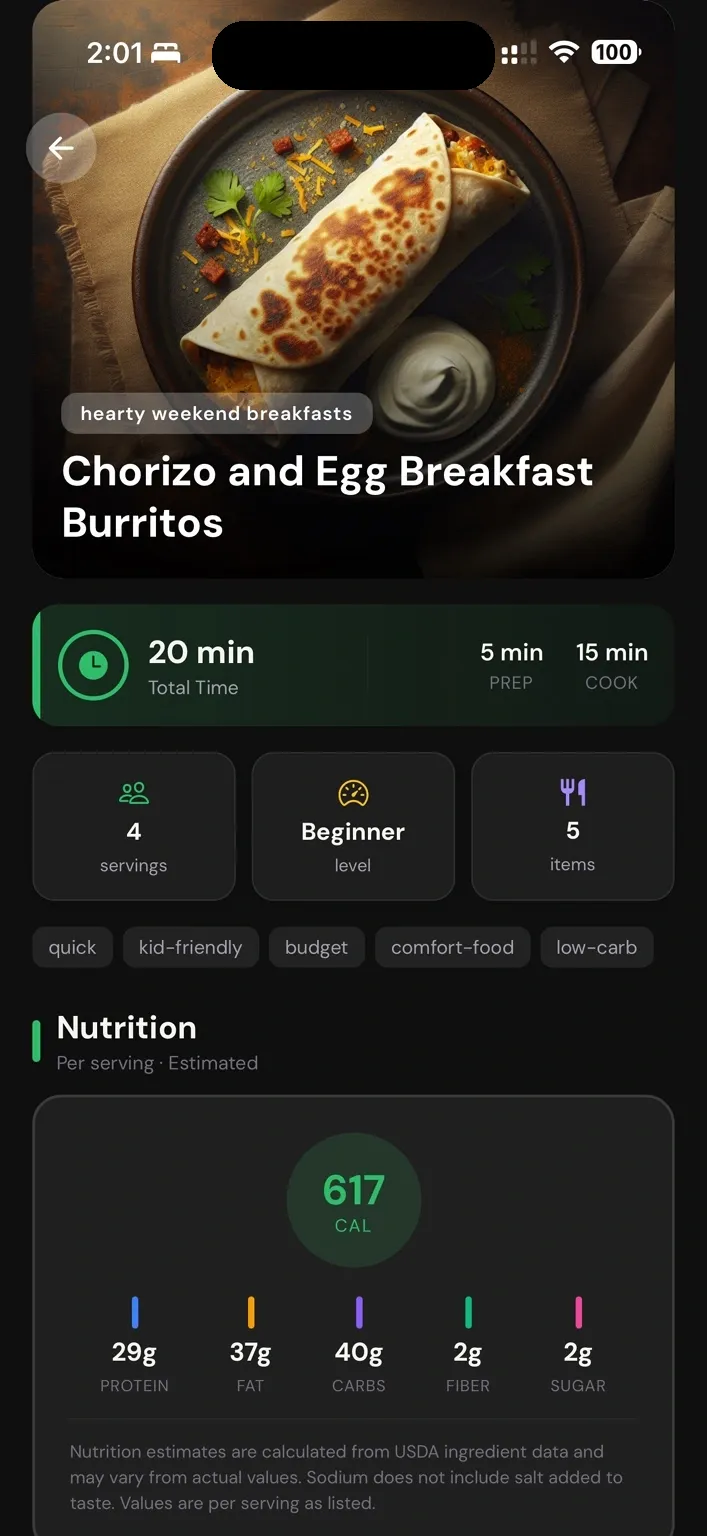
Recipe detail keeps the meal understandable while connecting back to the grocery plan behind it.
The weekly plan shows meal cards, budget context, and cart-ready status before shopping.
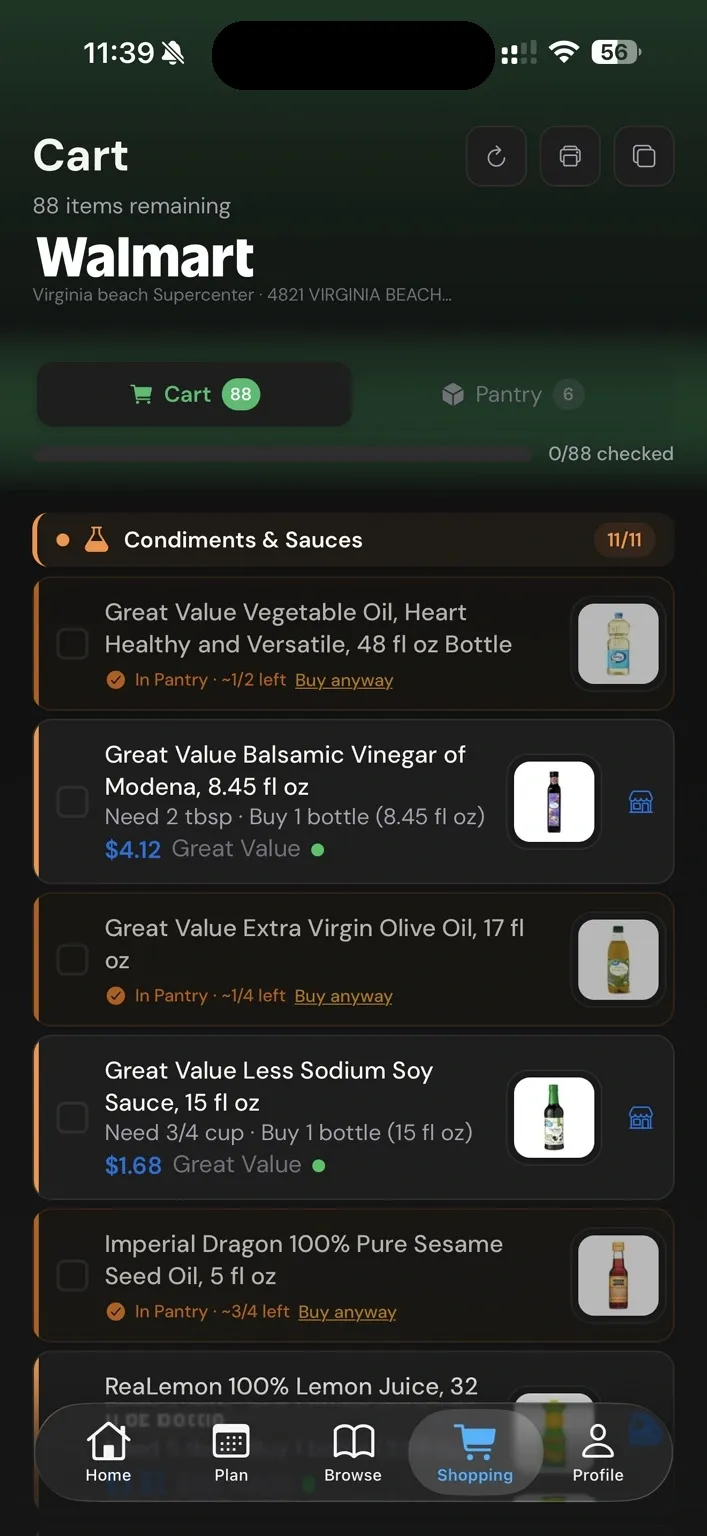
The cart review shows matched products and pantry-aware rows so users stay in control before retailer handoff.
Zenx connects your household, pantry, selected store, meal plan, and grocery rows in one flow.